|
 |
MiniPaint for Storm :: User Guide
Preview
MiniPaint is a program designed to edit the photos taken directly with the phone's camera. Thus, there are some considerations to take into account when using this program.
- Only can be opened images in JPEG and PNG format.
- The images must have a minimun size of 480 x 360 and no larger that 1600x1200. If an image is larger that 1280x960 this will be automatically scaled for a max width of 1280.
- The image produced by MiniPaint will be in JPEG format.
Important: This program uses a copy of the picture, there is no possibility of damaging their original pictures.
The clipart
This is the main feature of MiniPaint. It aims to create funny pictures using clipart.
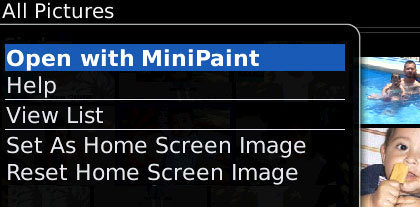
- Open a image for editing. Use the file explorer for browse and select the photo you want to edit. When an image has been selected, press the BlackBerry button and choose the option "Open with MiniPaint".
Bellow is showed the main screen of MiniPaint.
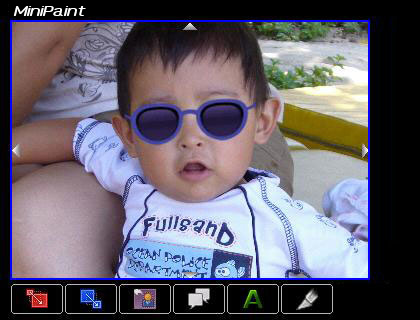
- Select the size for the image. Use the scale buttons for choose the size of the image that will be created.
 |
Bigger picture.
|
 |
Smaller picture.
|
- Move the picture. If needed, move the picture for choosing the specific area where the clipart will be placed, touch and drag the picture for move it.
For leaving the drawing area you must click on another side of the screen. For example, to the right of the window title, in the black area.
Only when you leave the drawing area the other icons are active and can respond to the actions.
- Select the clipart.
 |
Show the clipart screen. |
When you select a clipart, this will be placed into the drawing area.

Touch and drag the picture for move it, the blue square at left top is the reference. For leaving the selected clipart you must click on another side of the screen.
- Select the size for the clipart.
|
Bigger clipart. |
|
Smaller clipart. |
- Rotate the clipart. If needed, rotate the clipart. This is a cool feature of BBpaint that lets you put a clipart in a more accurate position and obtain much more real photos.
 |
Rotate the clipart to the left.
|
 |
Rotate the clipart to the right.
|
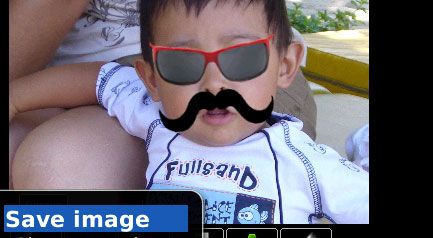
The following picture the clipart was moved, scaled and rotated. Important: you must note the quality of the clipart after the transformations.
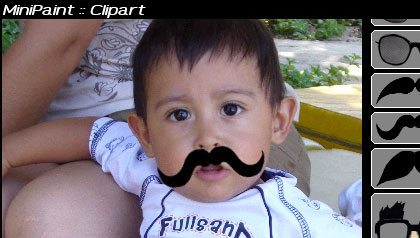
- Apply the changes.To paint the clipart over the photo, you must confirm the changes. Use the following button.
 |
Apply changes over the clipart.
|
After placing a clipart you can add others more. In the following picture was added another clipart.
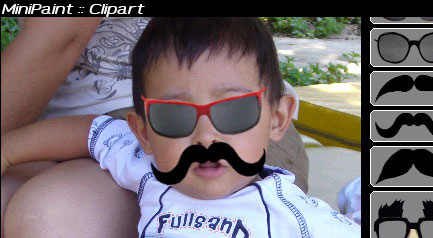
-
Save the photo. Close the clipart screen, press the BlackBerry button and choose "Save Image".

|











